Americon Bid Portal
Quick start
For project managers and coordinators
Ten minutes on what the portal is for, what has changed, and the order to do things in. Every panel points at the full manual, which answers everything this does not.
What the portal does
Five jobs that used to be spread across an Outlook folder, a spreadsheet and somebody's memory. They now happen in one place, against one project.
Publishes the job
Bid date, location, trades and drawings. Public projects appear on the bid calendar for any contractor to find. Private ones appear nowhere and open only from an invite link.
VisibilitySends the invitations
Pick contacts, groups or a whole trade from the shared directory. See who is excluded and why before anything sends. Each firm gets its own link.
Choosing who to inviteHands out the drawings
Plan files are served through an access check, not from a public folder. Contractors identify themselves as they take them — which is what makes it possible to tell them about an addendum later.
Who has taken the plansTakes the answers back
A contractor replies to the invitation from their own email. The reply files itself against the job, both of you are told, and anything attached is stored with it — no forwarding, and no account for them to sign into.
How a reply reaches the jobKeeps the record
Who was asked, when, whether it was delivered, whether it was opened, whether they said they are bidding, and what they sent. Exportable as a spreadsheet.
Who has been invitedProject Manager and Project Coordinator hold identical permissions. The distinction is who is responsible for the job, not what the software will let you press.
What has changed
The portal replaces a process that worked, but could not be evidenced. Most of what follows is about the second half of that sentence.
The one rule
Send invitations from the portal, not from Outlook.
An invitation composed in Outlook carries no per-firm link, honours no unsubscribe, checks nobody against the bounce list, and leaves the project unable to say the firm was ever asked. That last one is the record you need if a job is reviewed for good-faith solicitation — which is why the panel no longer offers a way to copy the invitation out.
For a private word with one firm, use Message on that firm's row — or Reply on something they have written, which answers in the same thread. Both go from the portal, so both are on the record too.
What the portal can prove afterwardsYour first project
The whole path, in the order you will walk it.
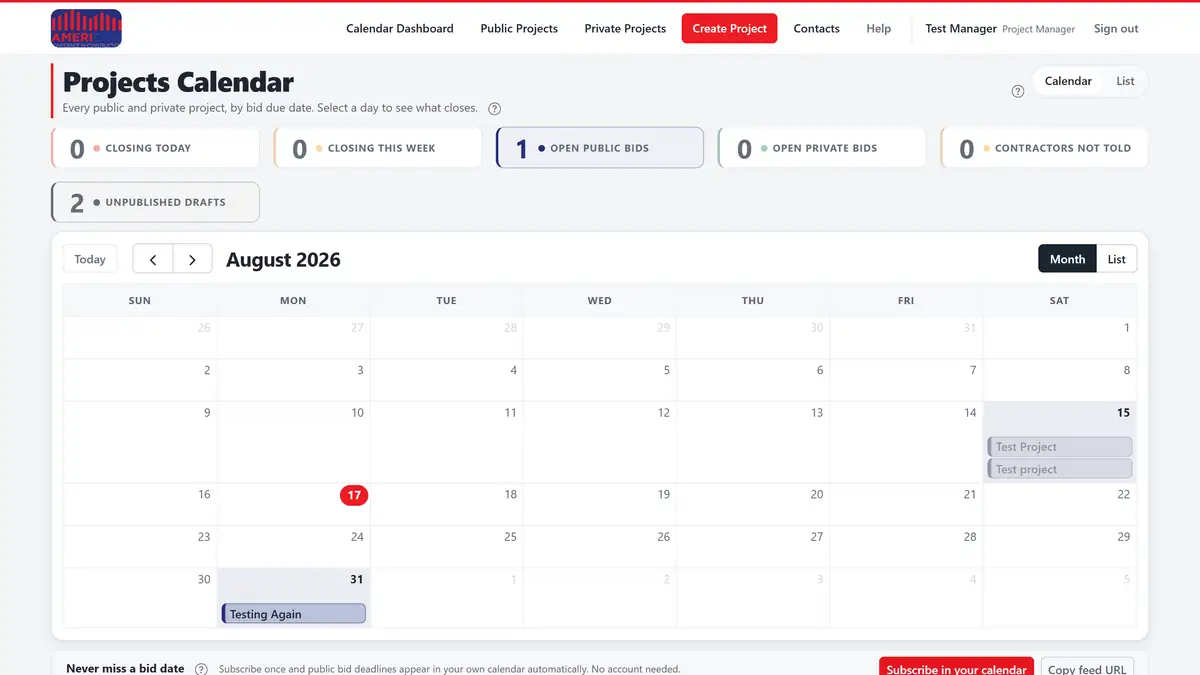
Create the draft. Name, city and state, bid due date, and the two people responsible. Everything else can wait. Choose Public or Private here.
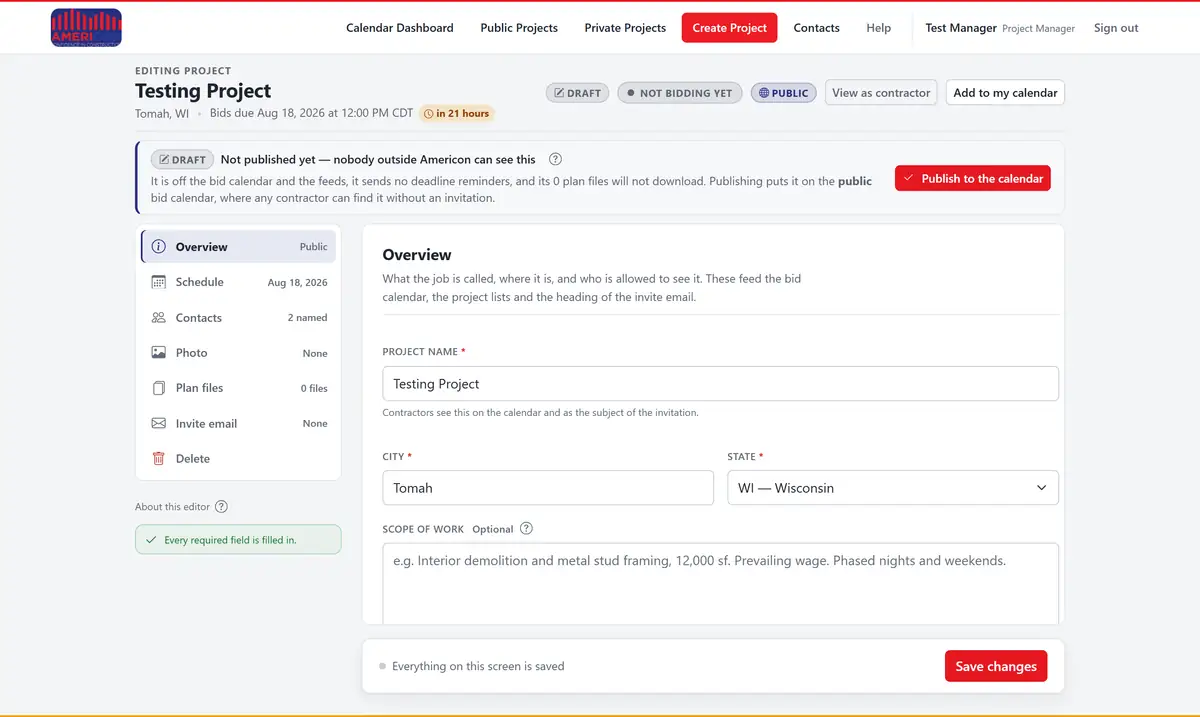
How the form is organisedFill in the editor. The rail down the left is the whole project. Each entry shows its own summary, so you can see what is still empty without opening it.
The section railUpload the drawings. Give each one a revision label matching its title block. This is the most consequential field on the screen.
File versions and revision labelsPublish. Until you do, the project is off the calendar, sends no reminders, and its plan files will not download.
Drafts and publishingInvite. Choose who to invite, read the review step, send a test to yourself first, then send. If the screen says invitations cannot go out yet, nothing is wrong with your project — the bid mailbox has not been read yet, and an administrator clears that in one press.
The review stepWatch the plan holders. Contractors who take the drawings appear on the project. That list is who you notify when a drawing is revised or the date moves.
Who has taken the plansAnswer what comes back. Replies appear in the editor's Mail section and on the invitation record, and you are emailed when one arrives. Say what each was — Bid or Question — and answer the questions with Reply, which records the answer for you; Acknowledge is for the ones you rang about. A question answered after the job closes is a question that was not answered.
The Correspondence panelCompare, then award. After the bid date, open Compare these bids side by side from the Offers panel. Every bid on the job in one table, by trade, lowest first; type or confirm each figure, level the ones that priced different things, then press Award on the winning row and let the portal tell the bidders.
Comparing bids side by side
Steps 4 and 5 are in that order for a reason. An invitation sent from an unpublished draft arrives with links that lead nowhere.
Step 7 does not wait for the others to finish. Questions start arriving the afternoon the invitations go out, and the ones worth answering come in before a firm has decided whether to bid at all.
Reading the screen
The labels that carry the most meaning, and what each one is telling you.
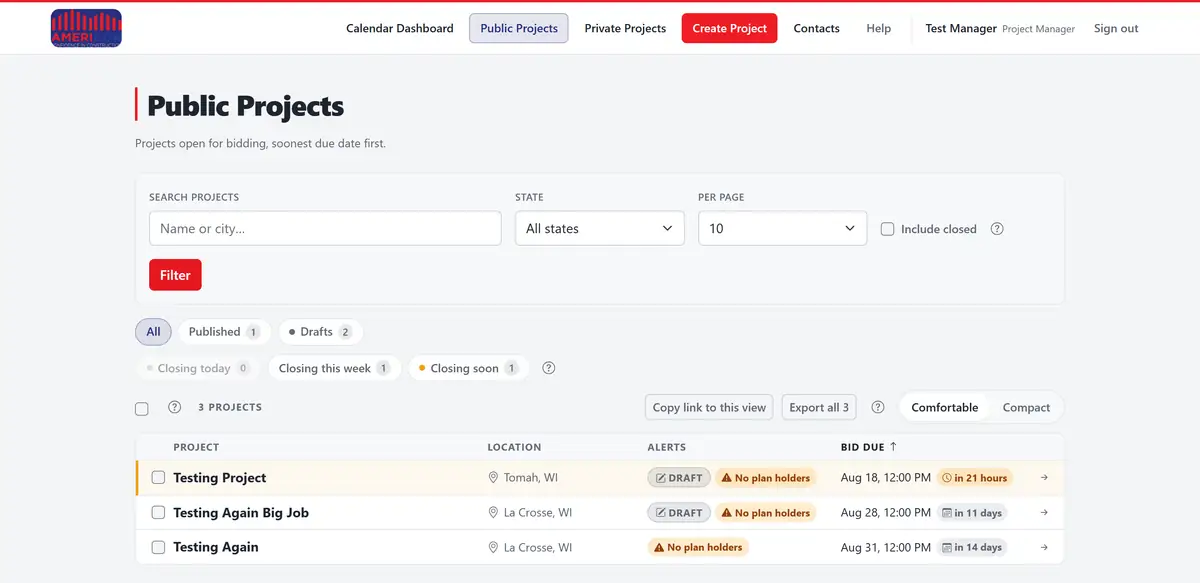
Written up, never published. Off the calendar, sends nothing, and its plan files will not download.
On the bid calendar. Any contractor can find it without an invitation.
Off every public surface. Reachable only through its invite link.
Nobody has taken the drawings. On a job with a bid date approaching, this is the one to act on.
A dashboard tile. The plans or the bid date changed after invitations went out, and these firms have not heard.
How long is left, in the words you would use out loud. Amber inside a week, red on the day.
Something a contractor wrote that you marked as a question. It stays listed as waiting until somebody replies from the portal or presses Acknowledge.
The portal knows a message had documents on it and has not been back for them yet. Usually a minute or two, not a reason to go looking in a mailbox.
Where to go from here
The full manual
Every control on the site, explained. Section 2 is written for your two roles. Open Help on the portal, or the copy you were sent with this.
The ? buttons
Beside any control worth explaining. Press one for a short answer, with a link into the manual entry.
A private draft
The fastest way to get comfortable. Make one, send yourself a test invitation, and press everything. A draft is invisible outside Americon until you publish it, so there is nothing to break.